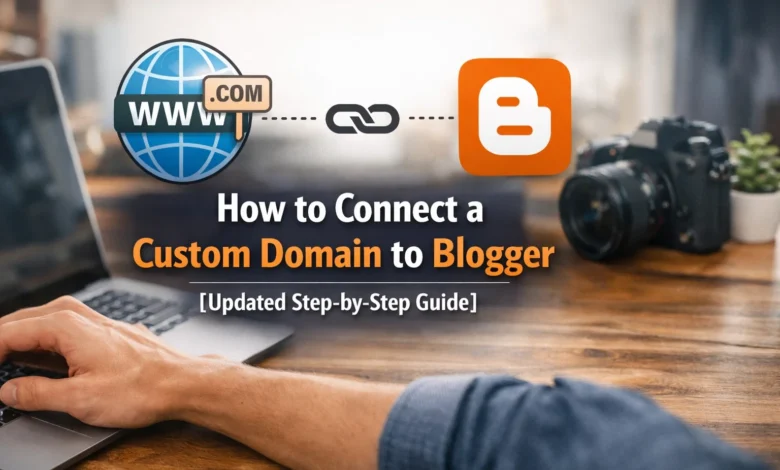
How to Connect a Custom Domain to Blogger (2026 Updated Step-by-Step Guide)

If you are still running your blog on a default Blogspot subdomain like:
yourblogname.blogspot.com
then you are missing out on SEO growth, branding opportunities, and higher AdSense approval chances.
Connecting a custom domain such as:
www.yourwebsite.com
to Blogger helps you build trust, rank better in Google, and establish a professional online identity — all without switching from the free Blogger platform.
In this updated 2026 guide, you will learn exactly how to connect your domain to Blogger using the latest dashboard interface and DNS setup method.
Summary
Blogger allows you to use a third-party domain name instead of the default Blogspot URL. By linking your purchased domain with Blogger through DNS configuration (CNAME and A Records), you can point your blog to your custom domain.
Google automatically applies:
- 301 Redirects
- Free SSL Certificate
- HTTPS Security
so your existing traffic and backlinks remain safe during migration.
Benefits of Using a Custom Domain on Blogger
1. Better SEO Ranking
Custom domains appear more authoritative in search engine algorithms compared to Blogspot subdomains.
2. Faster AdSense Approval
Professional domain names improve credibility and reduce rejection chances.
3. Brand Authority
Visitors trust a standalone domain more than a free hosted subdomain.
4. Higher Click Through Rate (CTR)
Users are more likely to click branded URLs in search results.
5. No SEO Loss During Migration
Blogger automatically redirects old Blogspot links to your new domain.
6. Professional Appearance
Ideal for business websites and niche blogs.
Disadvantages of Using Custom Domain in Blogger
1. DNS Setup Required
You must configure domain DNS settings manually.
2. Propagation Delay
DNS changes can take 30 minutes to 24 hours.
3. WWW Version Required
Blogger supports only www version for setup initially.
4. HTTPS Delay
SSL certificate may take some time to activate.
Step-by-Step Guide to Connect Domain to Blogger (2026)
STEP 1 — Add Custom Domain in Blogger
- Login to your Blogger Dashboard
- Select your blog
- Go to:
Settings → Publishing → Custom Domain
- Enter your domain in this format:
www.yourdomain.com
Do not enter without www
- Click Save
You will now see an error message with:
- One standard CNAME
- One unique security CNAME
Copy both records.
STEP 2 — Add CNAME Records in Domain DNS
Login to your domain registrar panel
(GoDaddy / Namecheap / Hostinger / BigRock etc.)
Go to:
DNS Management
Add this CNAME:
| Type | Host | Points To |
|---|---|---|
| CNAME | www | ghs.google.com |
Now add the second unique CNAME given by Blogger.
Example:
| Type | Host | Points To |
|---|---|---|
| CNAME | abcd123 | gv-xyz.googlehosted.com |
STEP 3 — Add A Records for Root Domain
Delete old A Records and add these:
| Type | Host | IP Address |
|---|---|---|
| A | @ | 216.239.32.21 |
| A | @ | 216.239.34.21 |
| A | @ | 216.239.36.21 |
| A | @ | 216.239.38.21 |
This connects:
yourdomain.com → www.yourdomain.com
STEP 4 — Wait for DNS Propagation
DNS propagation may take:
30 Minutes to 24 Hours
Now go back to Blogger → Custom Domain
Click Save Again
STEP 5 — Enable HTTPS
Now enable:
- HTTPS Availability
- HTTPS Redirect
Free SSL certificate will be automatically issued by Google.
STEP 6 — Redirect Non-WWW to WWW
Enable:
Redirect yourdomain.com to www.yourdomain.com
This prevents:
- Duplicate content
- SEO ranking issues
- Indexing errors
After Domain Connection Do This for SEO
- Submit new sitemap in Google Search Console
- Add property of new domain
- Update Analytics GA4 tracking
- Request homepage indexing
- Check canonical URL
Conclusion
Connecting a custom domain to Blogger in 2026 is easier than ever, thanks to Google’s automatic HTTPS support and built-in SEO-safe redirection system.
While DNS configuration may seem technical at first, following the correct CNAME and A Record setup ensures your blog runs smoothly on your branded domain without losing traffic or rankings.
If you’re serious about blogging, monetization, or building an online presence, using a custom domain is no longer optional – it’s essential.
Frequently Asked Questions (FAQs)
Blogger is free but you must purchase a domain separately.
Usually between 30 minutes to 24 hours.
Yes, Blogger automatically provides HTTPS security.
No, Blogger applies 301 redirects automatically.
No, you must first connect using www version.
SSL activation may take some time after DNS propagation.
You need two CNAME and four A Records.
No hosting is required.
Incorrect DNS or incomplete propagation.
Yes, after connecting a custom domain successfully.
Also Try These Post